Roles and permissions: precise access for your team

Roles and permissions: precise access for your team
You hire someone to fill in product descriptions. You give them dashboard access, and suddenly they can see your billing, invite anyone, and delete an entire shop. Until now, access in Upsellic was all-or-nothing: you were on the team or you weren't.
The new roles and permissions module changes that. Now you decide exactly who can do what, and even on which websites.
A role instead of thirty switches
A permission is a single grant in the form module:action: read products, write content, delete chats, that kind of thing. There are three actions: read, write and delete.
Instead of flipping those grants one by one for every person, you bundle them into a role. "Content editor", "Chat agent", "Analyst"; you decide what each one covers. Then you assign the role, not a list of switches.
You get two roles from the start. Administrator, with full access, locked so nobody can accidentally trim it down. And Member, the default starting role that operates assigned websites.
Access down to a single website
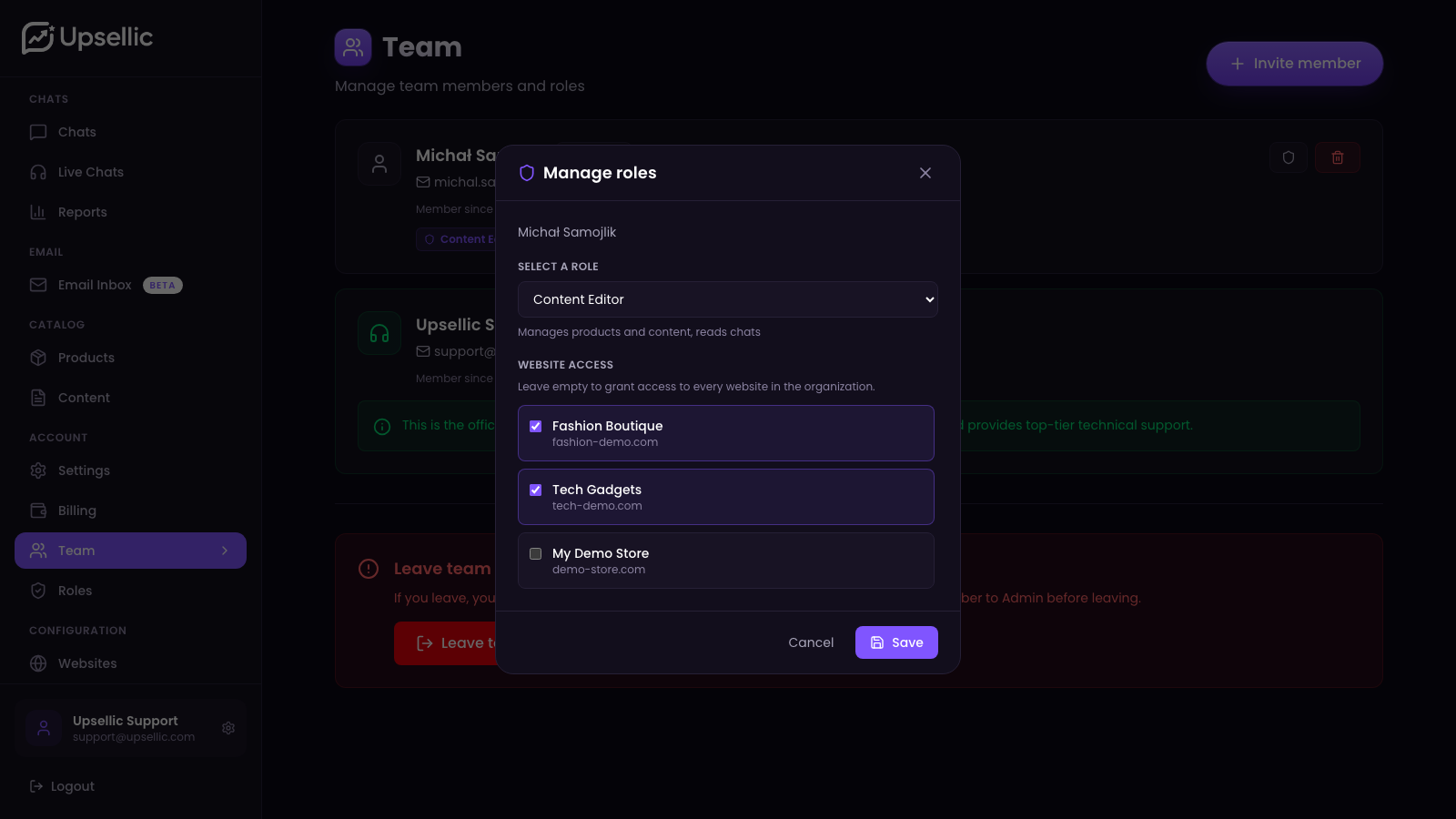
This is the interesting part. Every member has one role and a scope of websites it applies to. Leave the selection empty and the role covers every website in the organization; tick a few and it covers only those.
Say an editor handles two of your five shops. You give them the "Content Editor" role ticked for those two only. On the other three, their edit buttons simply never show up; they won't even see that there's something to change there.
The dashboard only shows what's allowed
Permissions don't work like a wall stamped "access denied". The dashboard just adapts to the person. No read access to a module and its menu item disappears. No write access, and the add and edit buttons vanish. Without delete rights, the delete buttons go too.
The result is that everyone sees a clean, trimmed-down dashboard where everything visible is actually clickable. Less room for mistakes, fewer "why can't I save this" questions.
How to get started
You create and edit roles in the Roles section, and assign them in Team, per member, or right inside an invitation when you add someone new. We walk through it step by step in the guide on roles and permissions.
A good rule to start with: grant the smallest scope someone needs and widen it as you go. It's easier to add access than to explain where someone got too much.
The roles and permissions module is now available for every organization in Upsellic.